TABLE OF CONTENTS
- Overview
- Prerequisites
- Generate ThreatLocker API Credentials
- Locate your ThreatLocker instance
- Configure ThreatLocker in ADR SIEM
- Verification (MSSP Only)
Overview
This document provides step-by-step instructions to integrate ThreatLocker with ADR SIEM (aiSIEM/aiXDR) using API credentials. Once configured, ThreatLocker logs and telemetry will be forwarded from the CCE (Collection and Control Engine) to the APE (Analytics and Policy Engine), enabling centralized visibility, policy enforcement monitoring, and proactive threat detection.
Prerequisites
Before beginning integration, ensure:
Access to the ThreatLocker Console with permission to create API users.
Administrative access to the ADR SIEM UI and CCE server.
Firewall rules allowing outbound HTTPS (443) from CCE to ThreatLocker API.
Generate ThreatLocker API Credentials
Log in to the ThreatLocker Console.
Navigate to: Administrators → API Users.
Click Create New User.
Name the token appropriately (e.g.,
ADR-Integration).Click Generate API Token → copy the token immediately.
Note: The token will only be shown once. Store it securely.Set token expiry (recommended: 365 days).
Assign a role to the API user. If needed, create a new role with at least the following permissions:
View Organization
View Computers
View Reports
View System Audit
View ThreatLocker Threats
View ThreatLocker Policies
View ThreatLocker Remediations
View Unified Audit
Select the Organizations the API user should have access to.
Click Create.
Locate your ThreatLocker instance
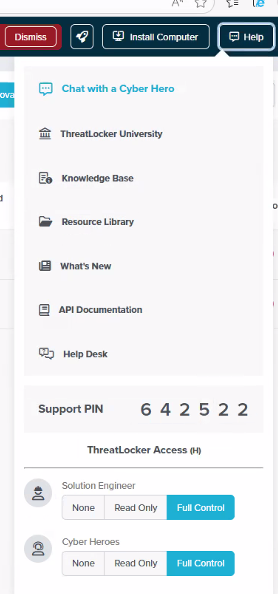
In your ThreatLocker portal, click the Help button at the top right. Your instance appears in parentheses next to the "ThreatLocker Access" text.
The instance is usually a single letter, such as B, C, G, or H. Note it down and enter it in the Config (JSON) field when configuring ThreatLocker in ADR SIEM, for example: {"instance":"H"}
Configure ThreatLocker in ADR SIEM
Log in to ADR SIEM UI with admin rights.
Navigate to: Administration → Add-on Store → ThreatLocker → Add.
Fill in details:
| Field | Value |
|---|---|
| Device Name | ThreatLocker |
| CCE Host (IP) | Enter the CCE IP |
| Password / Secret Key | Enter the ThreatLocker API Key |
| Config (JSON) | {"instance":"X"}, where X is your instance letter |
Example JSON:
{"instance":"H"}
Verification (MSSP Only)
On ADR SIEM UI
Navigate: System → Logs and Flows Collection Status.
Confirm ThreatLocker appears under Source Device IP.
Verify logs are being ingested and parsed correctly.
On ADR CCE (CLI)
Run:
otmdoc -s addondevices
crontab -l
Was this article helpful?
That’s Great!
Thank you for your feedback
Sorry! We couldn't be helpful
Thank you for your feedback
Feedback sent
We appreciate your effort and will try to fix the article